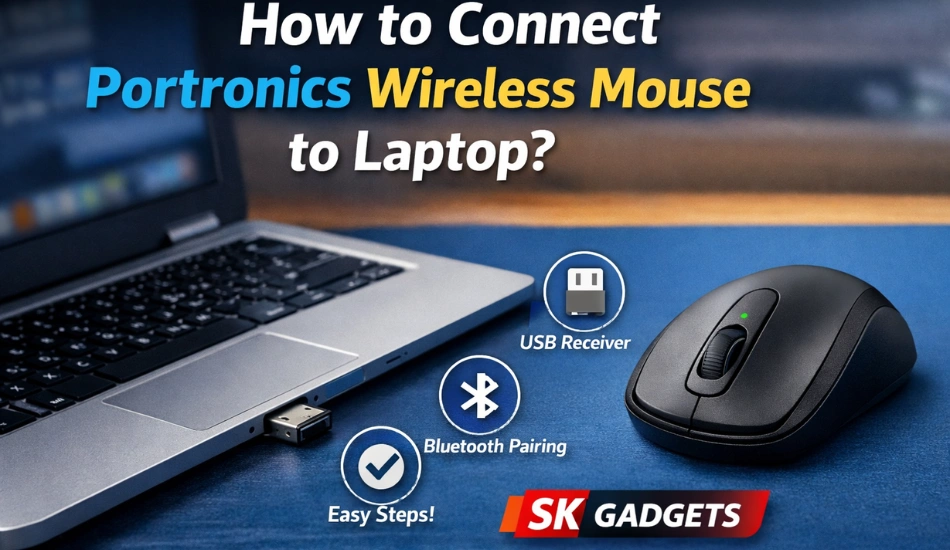
A wireless mouse makes everyday laptop use smoother—whether you’re working, studying, or gaming. Portronics wireless mice are popular in India because they are affordable, reliable, and easy to use. If you recently purchased one and are wondering how to connect it to your laptop, this simple guide from SK Gadgets will help you get started in just a few minutes.
What You Need Before Connecting
Before connecting your Portronics wireless mouse, make sure you have:
- A Portronics wireless mouse
- AA or AAA batteries (most models use one battery)
- A laptop (Windows, macOS, or Linux)
- USB receiver or Bluetooth support (depending on model)
Most Portronics mice are plug-and-play, so no extra software is required.
Method 1: Connect Portronics Wireless Mouse Using USB Receiver (Most Common)
This is the easiest and fastest method.
Step-by-Step Guide
- Insert the Battery
Open the battery compartment under the mouse and insert the battery correctly. - Turn ON the Mouse
Use the power switch located at the bottom of the mouse. - Plug in the USB Receiver
Take the small USB dongle (usually stored inside the mouse) and insert it into your laptop’s USB port. - Wait for Auto-Detection
Your laptop will automatically detect the mouse within a few seconds. - Start Using the Mouse
Move the mouse to check the cursor—connection is complete
👉 No drivers or setup needed.
Method 2: Connect Portronics Bluetooth Mouse to Laptop
Some Portronics models come with Bluetooth connectivity.
For Windows Laptop
- Go to Settings > Bluetooth & Devices
- Turn ON Bluetooth
- Press and hold the pairing button on the mouse (or switch to Bluetooth mode)
- Select your Portronics mouse from the list
- Click Pair
For macOS Laptop
- Open System Settings > Bluetooth
- Turn ON Bluetooth
- Put the mouse in pairing mode
- Click Connect
Once paired, your mouse will work instantly.
Common Issues & Easy Fixes
Mouse Not Working?
- Check if the battery is charged
- Ensure the mouse power switch is ON
- Try a different USB port
- Reinsert the USB receiver
- Restart your laptop
Cursor Lag or Disconnecting?
- Replace the battery
- Keep the mouse within 10 meters
- Avoid wireless interference
Why Choose Portronics Wireless Mouse?
- Ergonomic and comfortable design
- Smooth cursor movement
- Long battery life
- Budget-friendly pricing
- Ideal for office, home & travel
Buy Portronics Wireless Mouse Online from SK Gadgets
Looking for original Portronics wireless mice at the best price? Shop with confidence at SK Gadgets.
🛒 Buy Now Options :
- 👉 Portronics Wireless Mouse – USB Model
- 👉 Portronics Bluetooth Wireless Mouse
- 👉 Latest Portronics Accessories
Final Words
Connecting a Portronics wireless mouse to your laptop is quick and hassle-free, even for first-time users. Whether you choose a USB receiver or Bluetooth model, setup takes less than a minute. For genuine products, fast delivery, and trusted support, SK Gadgets is your go-to destination.



wish you all the best